Web UI#
The runtime serves a browser UI on the same port it listens on. Open it at http://localhost:3003.
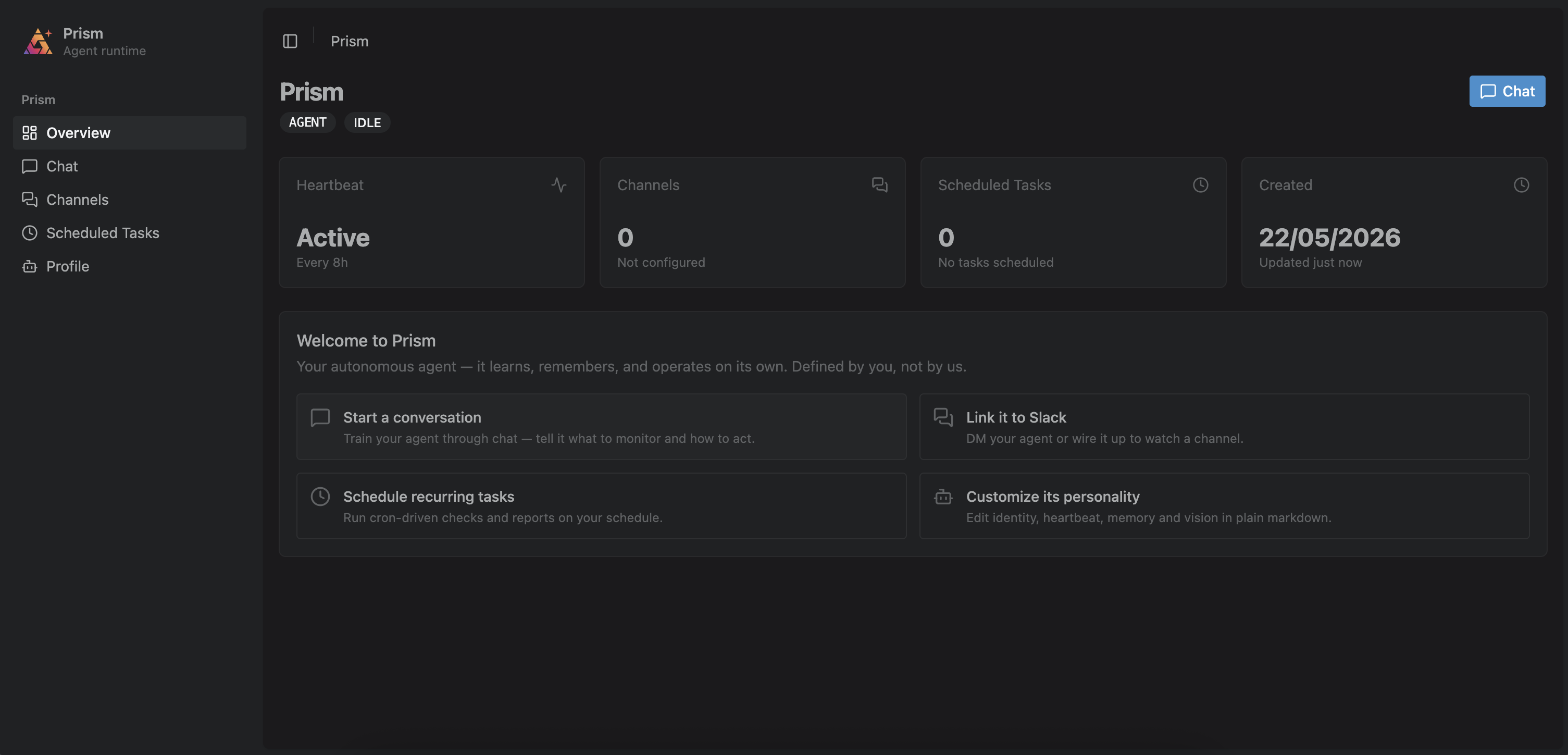
The UI is organized around a left sidebar with six sections: Overview, Chat, Channels, Scheduled Tasks, Webhooks, and Profile. There's no separate login for the bundled single-agent runtime — it serves your one agent directly.
Overview page#
The landing page shows the agent's status (RUNNING / IDLE / ERROR), its heartbeat state, a count of linked Slack channels, the number of scheduled tasks, and when the agent was created. The stat cards are clickable shortcuts into Profile, Channels, Scheduled Tasks, and Chat. To rename the agent, use the Name field on the Profile page.
Chat#
The main conversation surface.
- Sending messages. Type in the input pinned to the bottom and press send. By default (Concise mode) the agent delivers only its final message. Turn on Verbose mode to see intermediate steps stream in as the agent works — see the verbosity setting in the configuration reference.
- Slash commands. Type
/to open a command popup — the same as the terminal UI: filter by typing, Tab to complete, arrow keys to move the selection, Enter to run. The web UI supports/help,/skills(list installed skills, or/skills run <NAME>),/plugins(list installed plugins and any load problems),/goal(set or manage a background goal), and/compact(summarize the thread's older history now — see conversation compaction). Command output appears as a system note in the conversation;/goaland/skills runstream the agent's reply in. - Attachments. Attach files with the paperclip button or by drag-and-drop. Pending attachments show as chips and can be removed before sending. Up to 100 attachments per message.
- Stopping. While the agent is responding, the send button becomes a stop button that cancels the in-flight turn.
- Tool calls. When the agent uses a tool, the message shows an expandable section with the tool name, its input, and its output.
- Markdown and downloads. Agent messages render as markdown. Files the agent shares back appear as downloadable chips.
- Threads. Each conversation is a thread. Recent threads are listed in the sidebar under Chat (newest first); click one to reopen it. The thread ID is in the URL (
/chat/<THREAD-ID>), so conversations are deep-linkable. A new thread is created automatically on your first message, and gets an auto-generated title once it has content. - Connection status. A small indicator shows the live WebSocket connection state; it reconnects automatically.
- Context used. Above the input, the right-hand side shows how much of the model's context window this conversation has consumed — for example
58% context used. Hover it for the exact token counts and the model they were measured against. It's hidden when the agent runs a model the runtime doesn't recognize — seeCONTEXT_WINDOW_TOKENSin the configuration reference.
Channels#
Link the agent to Slack. The page reflects whether a Slack workspace is configured at all — it needs SLACK_BOT_TOKEN and SLACK_APP_TOKEN in the runtime's environment (see Slack).
There are two modes, and they're mutually exclusive — unlink one before switching to the other.
- Personal Mode (DM). Link your Slack account to DM the agent. Click Link Account to generate a six-character verification code (it expires in about 15 minutes), then DM that code to the agent in Slack. Once linked, the page shows the linked DM; Unlink undoes it.
- Team Mode (channels). Invite the agent to channels. Click Add channel to generate a channel link code, invite the agent to the channel, and post the code there. You can link multiple channels — they're listed in a table, each with an Unlink action. One channel is the main channel (marked ★); it's where heartbeat alerts post. Use Set main to move it. The first channel you link becomes main by default.
The page also manages heartbeat triggers: designate a Slack channel so that incoming messages wake the agent's heartbeat, with a configurable throttle between triggers. See Slack-triggered heartbeats.
Scheduled Tasks#
List, create, and delete the agent's cron-driven runs.
- The table shows each task's name, its cron schedule (for example
0 9 * * *), and its last run time. - Create opens a form: a name, a cron expression, and an optional instruction describing what the agent should do on each tick.
- Delete removes a task after a confirmation.
The web UI create form takes raw cron expressions. The agent itself, and the TUI, also accept natural-language schedules — see Scheduled tasks.
Webhooks#
Let external systems trigger the agent by POSTing JSON to a named endpoint.
- Enable Webhooks turns the inbound receiver on (it starts disabled); the toggle applies immediately, no restart.
- New subscription creates a named route (
/agents/webhooks/<NAME>) with an optional description, an event-type filter, a delivery target (All channels / Chat / Slack), a deliver-only mode that posts the rendered payload without running the agent, and an optional prompt template. - Each row shows the endpoint path with a copy button, an Active switch (disabled subscriptions reject events), and a delete action.
See Webhooks for the endpoint contract, prompt-template syntax, and sender configs.
Profile#
The agent's identity and runtime controls.
- Name and models. Edit the agent's display name (1–64 characters) and its LLM model ID inline. Reset returns the main model to the runtime default. Separate Heartbeat model and Scheduled-task model fields let you run those on their own model; leave a field empty to inherit the main model. See Configuration.
- Chat delivery. A toggle switches between Concise (default) and Verbose mode. In concise mode only the agent's final message is delivered; intermediate steps are persisted but not shown. See chat verbosity.
- Locked-in mode. A toggle freezes the agent's identity documents against its own tools — Soul, User, Memory, Vision, Heartbeat, and Bootstrap become read-only to the agent, while settings, renames, and vector memory keep working. The agent cannot turn this off itself. See locked-in mode.
- Identity documents. Seven tabs show the agent's markdown documents — Agent (guide), Soul, User, Heartbeat, Memory, Vision, and Bootstrap. These are read-only viewers; the agent edits them itself during conversation. See Agent identity.
- Heartbeat controls. A status panel shows whether the heartbeat is Active or Stopped, its interval, the last run time, and a consecutive-error count. Buttons let you Start, Stop, or Trigger now, and you can edit the interval inline (1–10080 minutes). See Heartbeat.
- Backup and restore. Export downloads a
.prismsnapshot of the entire agent — chat history, memory, scheduled tasks, settings, and Slack mappings. Restore replaces the agent from a.prismfile; the runtime restarts and the page reconnects when it's back.
Warning
Restore is destructive — it replaces the current agent entirely. Export a .prism snapshot first if you want to keep the running agent.