Terminal UI#
prism is a terminal UI for chatting with a Lens Prism agent and managing its state without leaving the shell — useful on headless servers, over SSH, or as a keyboard-driven alternative to the browser.
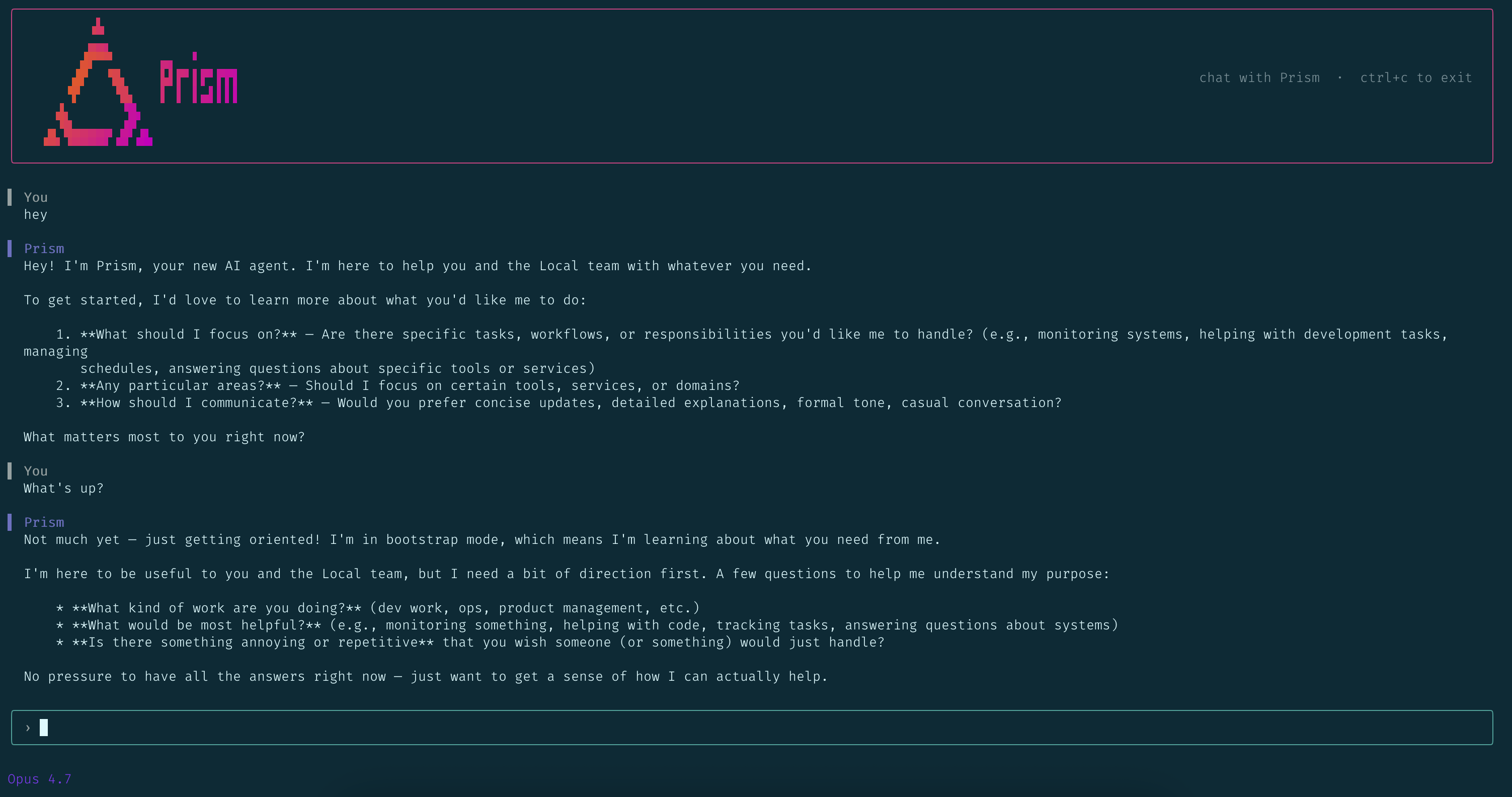
prism
By default it connects to a runtime at http://localhost:3003. Point it elsewhere with PRISM_HTTP_URL or the ~/.prism/settings.json file — see the CLI reference for all flags and settings.
Start and resume conversations#
- Fresh start. Running
prismwith no flags creates a new conversation thread and drops you into the chat view. - Resume. Run
prism --resumeto pick a previous conversation from a list. The picker shows each thread's title, how long ago it was active, and the working directory (and git branch) it was started in. Select one with the arrow keys and Enter; Escape cancels.
To switch to a different thread mid-session, exit and relaunch with --resume.
Chat with the agent#
Press Escape to cancel an in-flight response. Each agent message shows which tools it used; press Ctrl+O to expand the latest message's tool calls and see their inputs and outputs.
You can keep typing while the agent works; a message sent mid-response is handed to the running turn, so the agent changes course without waiting for it to finish.
Use Up and Down arrows from an empty input to walk back through your message history. Press Ctrl+C (or run /exit) to quit.
Run slash commands#
Type / to open a command popup; keep typing to filter, Tab to complete, Enter to run. The available commands:
| Command | What it does |
|---|---|
/help |
List all commands |
/copy |
Copy the most recent message to the clipboard |
/attach <PATH> |
Stage a file (≤10 MB) to send with your next message; offers path completion |
/detach |
Remove all staged attachments |
/save [DIR\|FILE] |
Save files the agent shared in its last message to disk |
/rename <NAME> |
Rename the agent (1–64 characters) |
/model <ID\|reset> |
Set the agent's model, or reset to the server default |
/compact |
Summarize the thread's older history now — see conversation compaction |
/heartbeat-model <ID\|reset> |
Set the heartbeat model, or reset to inherit the main model |
/cron-model <ID\|reset> |
Set the scheduled-task model, or reset to inherit the main model |
/heartbeat <…> |
Control the heartbeat — see below |
/goal <…> |
Set or manage a background goal — see below |
/skills [list\|run <NAME>] |
List installed skills, or run one |
/plugins |
List installed plugins, what each contributes, and any load problems |
/schedules |
Open the scheduled-tasks panel |
/config |
Open the identity and config viewer panel |
/exit |
Shut down the TUI |
For the full argument list, see the CLI reference.
/heartbeat#
Manage the agent's heartbeat inline:
/heartbeat status— show whether it's active or running, its last run, errors, and interval./heartbeat startand/heartbeat stop— enable or disable it./heartbeat trigger— run a heartbeat right now./heartbeat every 5mor/heartbeat every 2h— set the interval (1 minute to 7 days).
/goal#
Set or manage a background goal — an objective the agent keeps working toward across multiple turns until it's done:
/goal <OBJECTIVE>— set a goal in plain language and start it./goalor/goal status— show the current goal's status (turns, tokens)./goal list— list all goals./goal pauseand/goal resume— pause or resume the active goal./goal stop(aliasesclear,cancel,off) — stop the active goal.
The same /goal command is available in the web UI.
Attach and save files#
/attach ./report.pdf stages a file; it shows above the input with a /detach hint, and is sent with your next message. When the agent shares files back, /save writes them to the current directory — or pass a target: /save ./out/ for a directory, or /save ./out/report.pdf to name a single file.
Panels#
Two full-screen panels replace the chat view temporarily; Escape closes them.
Schedules panel#
Open it with /schedules. It lists the agent's scheduled tasks with their name, schedule, next run, and active state. From the list:
- n — create a new schedule (a form with Name, Schedule, and Instruction fields; Tab and arrows to move between fields, Enter to submit).
- d — delete the selected schedule (confirm with y).
- Arrow keys to navigate.
Config panel#
Open it with /config. A two-pane viewer for the agent's identity. The left pane shows the agent's name, model (plus the heartbeat and scheduled-task models, or (main) when they inherit it), timezone, and heartbeat status, plus a list of the seven identity documents. The right pane shows the selected document's content. Use Tab or the left and right arrows to move between panes, up and down to scroll, and Page Up and Page Down to page through long documents. It's a viewer — edit these documents through conversation. See Agent identity.
Status bar#
The bottom status bar shows the current model (pretty-printed, for example "Opus 5") and a red indicator with a message if the connection drops. The TUI reconnects to the runtime automatically with backoff, buffering anything you send while it's offline.
Next to the model, it shows how much of the model's context window this conversation has consumed — for example | context 58%. It changes colour as the window fills. It's hidden if the runtime doesn't recognize the model's context window — see CONTEXT_WINDOW_TOKENS in the configuration reference.