Using Argo CD#
Lens premium subscription feature. See details on Lens Pricing.
The Argo CD entry in the cluster navigator opens a dashboard for cluster-wide sync and health status, and gives you list and detail views for every Argo CD resource kind. Lens K8S IDE reads this directly from in-cluster Kubernetes data.
View the Argo CD dashboard#
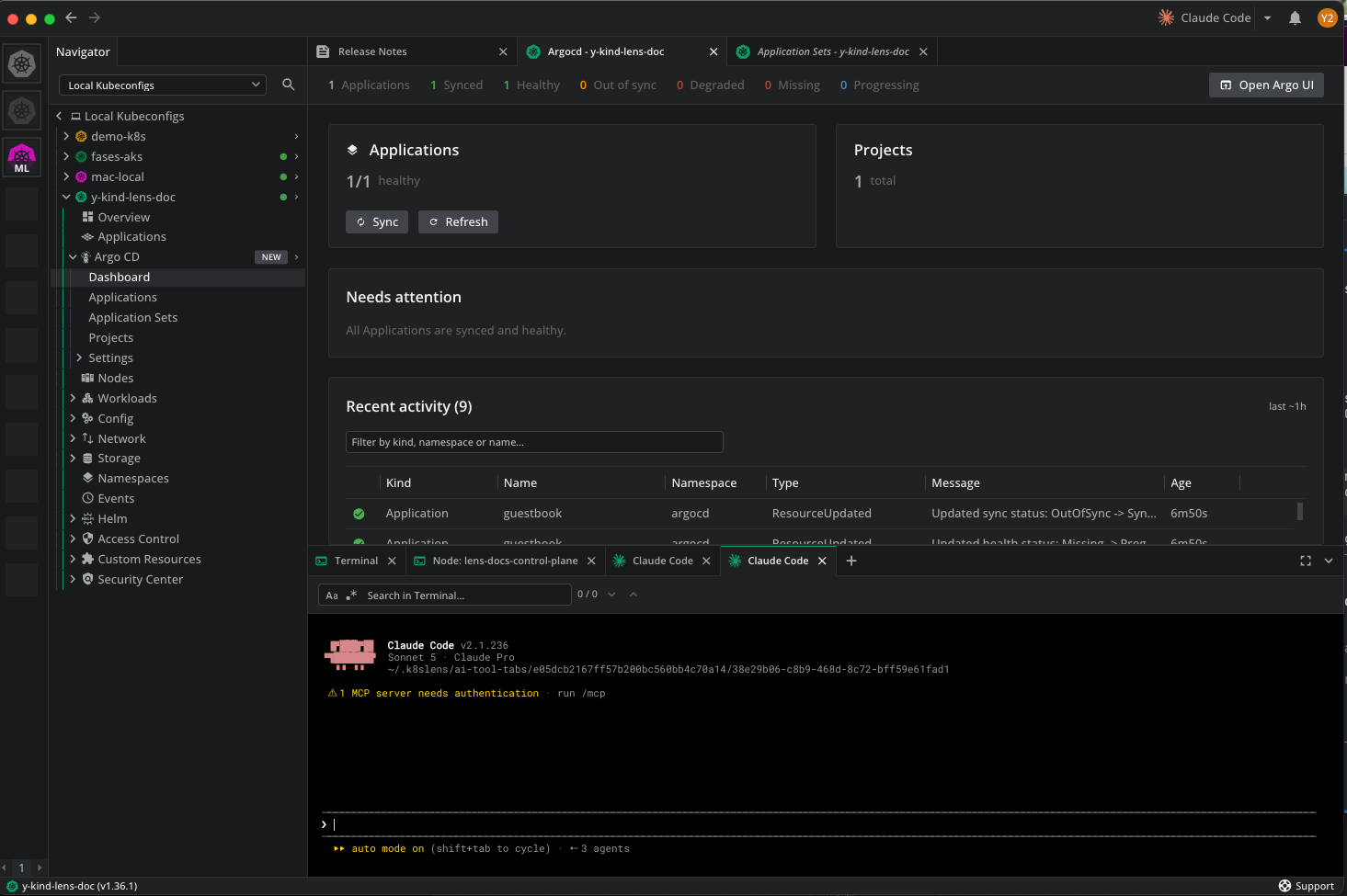
Select Dashboard under the Argo CD entry:
- Counts across every Application in the cluster: Applications, Synced, Healthy, Out of sync, Degraded, Missing, and Progressing, plus a button that opens the Argo CD UI.
- A card per resource kind. The Applications card leads with healthy over total, adds a chip for each problem count, and carries the Sync and Refresh actions.
- Needs attention: the Applications with a problem, each with the reason. Select a row to open that Application's details.
- Recent activity: a timeline built from Kubernetes events, newest first, with a free-text filter. Each entry is categorized as a failure, progress, success, or informational event.
Sync and health status#
Argo CD reports two status axes, and Lens K8S IDE shows both.
Sync compares the live cluster state against Git:
| Status | Meaning |
|---|---|
Synced |
The live state matches the target revision. |
OutOfSync |
The live state differs from the target revision. |
Unknown |
Argo CD has not reported a sync status. |
Health reports whether the deployed resources work:
| Status | Meaning |
|---|---|
Healthy |
All resources are running as expected. |
Progressing |
A change is rolling out. |
Degraded |
Resources failed or are unavailable. |
Suspended |
The Application is paused. |
Missing |
Resources Argo CD expects are not present. |
Unknown |
Argo CD has not reported a health status. |
An Application reaches Needs attention when it is Degraded, Missing, or OutOfSync. Health outranks sync, so a Degraded Application is listed as degraded even when its sync status is also a problem.
View Argo CD resources#
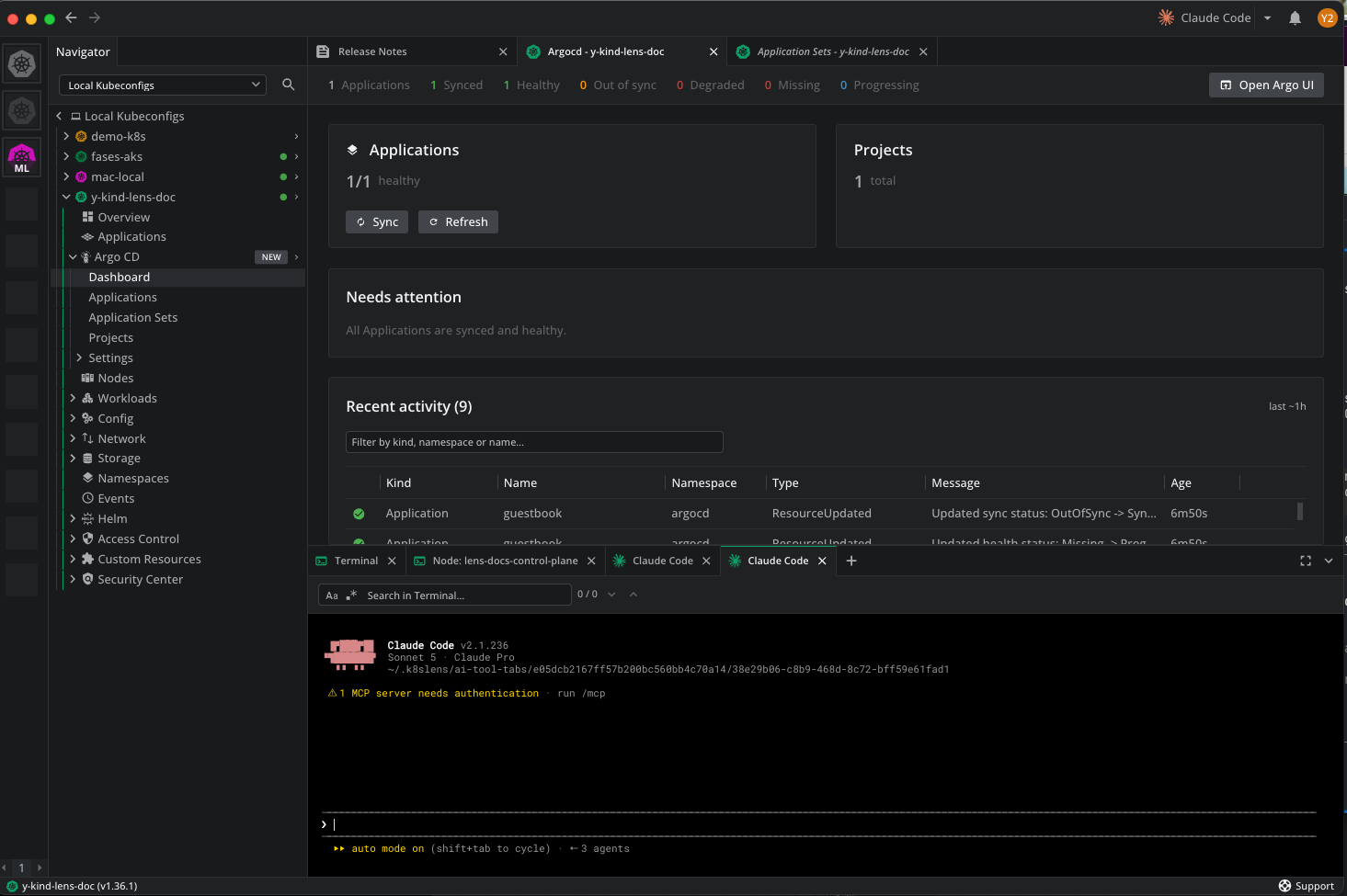
Each Argo CD resource kind has its own list view under Argo CD, with a detail view per resource:
| View | Columns |
|---|---|
| Applications | Name, Namespace, Sync, Health, Project, Destination, Revision, Age |
| Application Sets | Name, Namespace, Generators, Age |
| Projects | Name, Namespace, Description, Source Repos, Age |
| Settings > Repositories | Name, Type, URL, Project, Age |
| Settings > Clusters | Name, Server, Age |
Use the namespace selector and the search field to narrow a list. Destination combines the target cluster and namespace. Revision shortens a Git SHA or an OCI digest to its first eight characters.
The Application Sets view names the generator each set uses. The Projects view counts the repositories each project may deploy from. The Settings > Repositories view lists every repository registered with Argo CD, with its type and the project it is scoped to.
To inspect a resource:
- In the cluster navigator, select Argo CD.
- Select a view, then select a resource from the list.
- Use the cross-reference links in the detail view to navigate to the resources it manages and to its source revision.
An Application's detail panel carries a Managed resources section listing every object it deployed, with the kind, name, namespace, and the sync and health status of each one. Select a name to open that object. This is the path from a failing Application to the container logs underneath it.
View the managing Application on a resource#
Any resource that Argo CD manages carries a Managed by entry in its Properties panel, linking to the Application that manages it. This is the reverse of the Application's own list of managed resources. Use it on a Deployment, a Service, or any other object to find out which Application owns it.
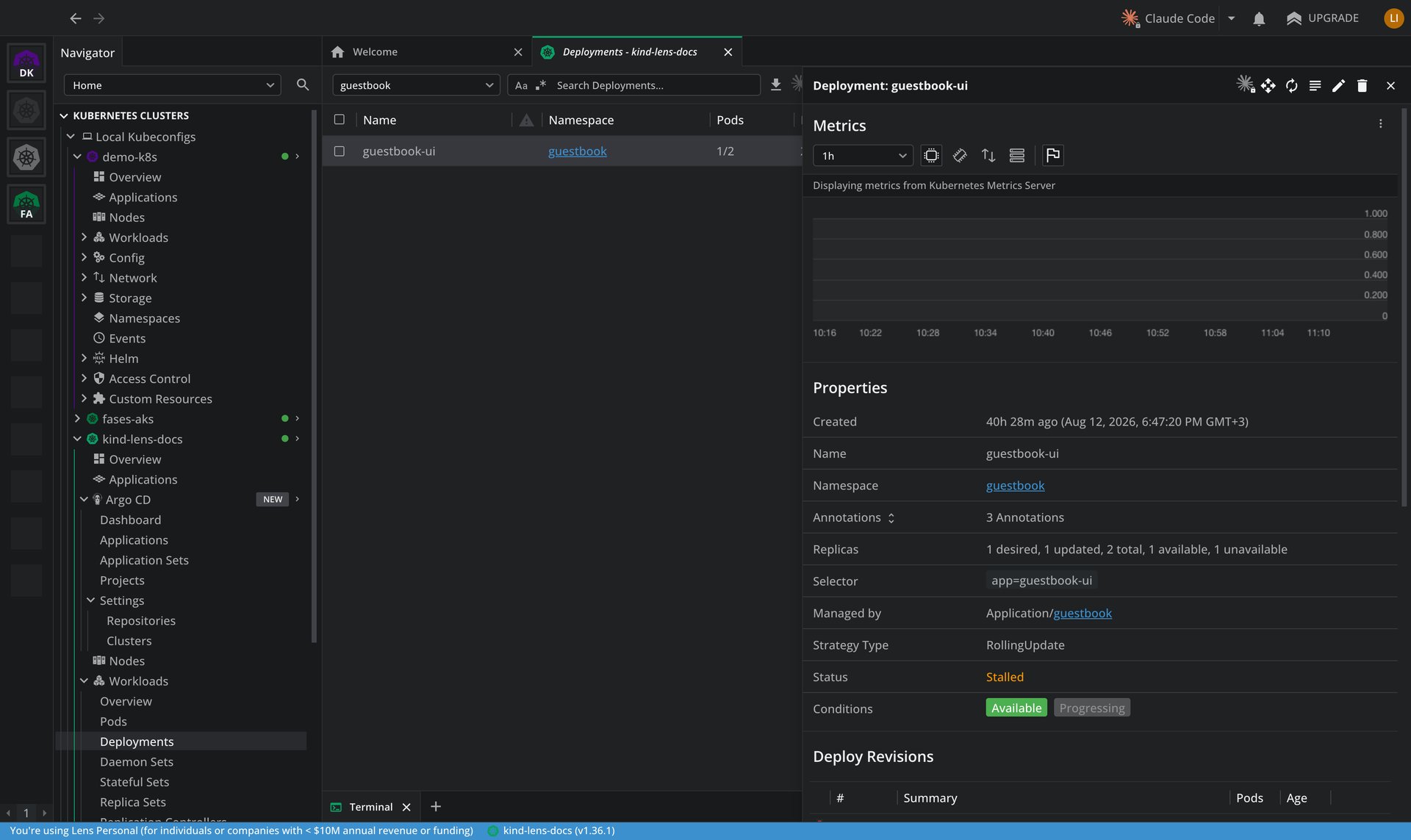
Lens K8S IDE resolves this link against the Applications it has loaded. A generic app.kubernetes.io/instance label on an unmanaged resource is not mistaken for Argo CD ownership.
Sync an Application#
A sync tells Argo CD to bring the cluster in line with the target revision in Git.
Prune deletes resources
Syncing with Prune resources not in Git enabled deletes live resources that no longer exist in the target revision. Leave it off unless you intend to remove them.
To sync one Application:
- In the cluster navigator, select Argo CD > Applications.
- Right-click an Application, or open its context menu.
- Select Sync.
Lens K8S IDE records the request on the Application, and the argocd-application-controller performs the sync. Progress appears in the Application's status and in the dashboard's Recent activity feed.
Refresh an Application#
A refresh asks Argo CD to compare the Application against Git again, without waiting for the next polling interval. Use it after pushing a commit.
To refresh one Application:
- In the cluster navigator, select Argo CD > Applications.
- Right-click an Application, or open its context menu.
- Select Refresh.
Two refresh types are available:
- Normal: re-compare the Application against the cached manifests.
- Hard: re-compare and discard the manifest cache. Use Hard when a normal refresh does not pick up changes you expect.
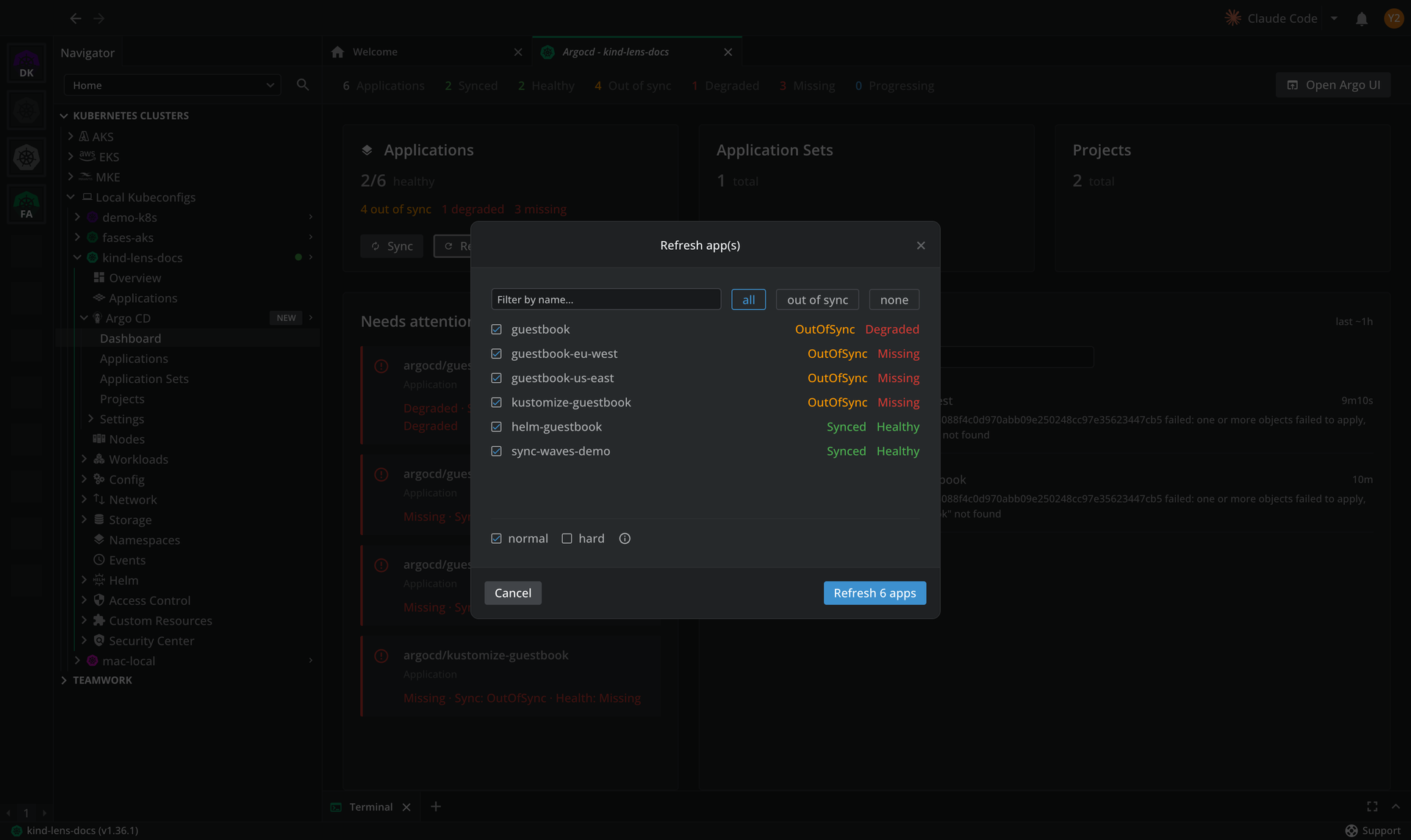
Lens K8S IDE sets the argocd.argoproj.io/refresh annotation on the Application. Argo CD clears the annotation once the refresh completes.
Sync or refresh several Applications#
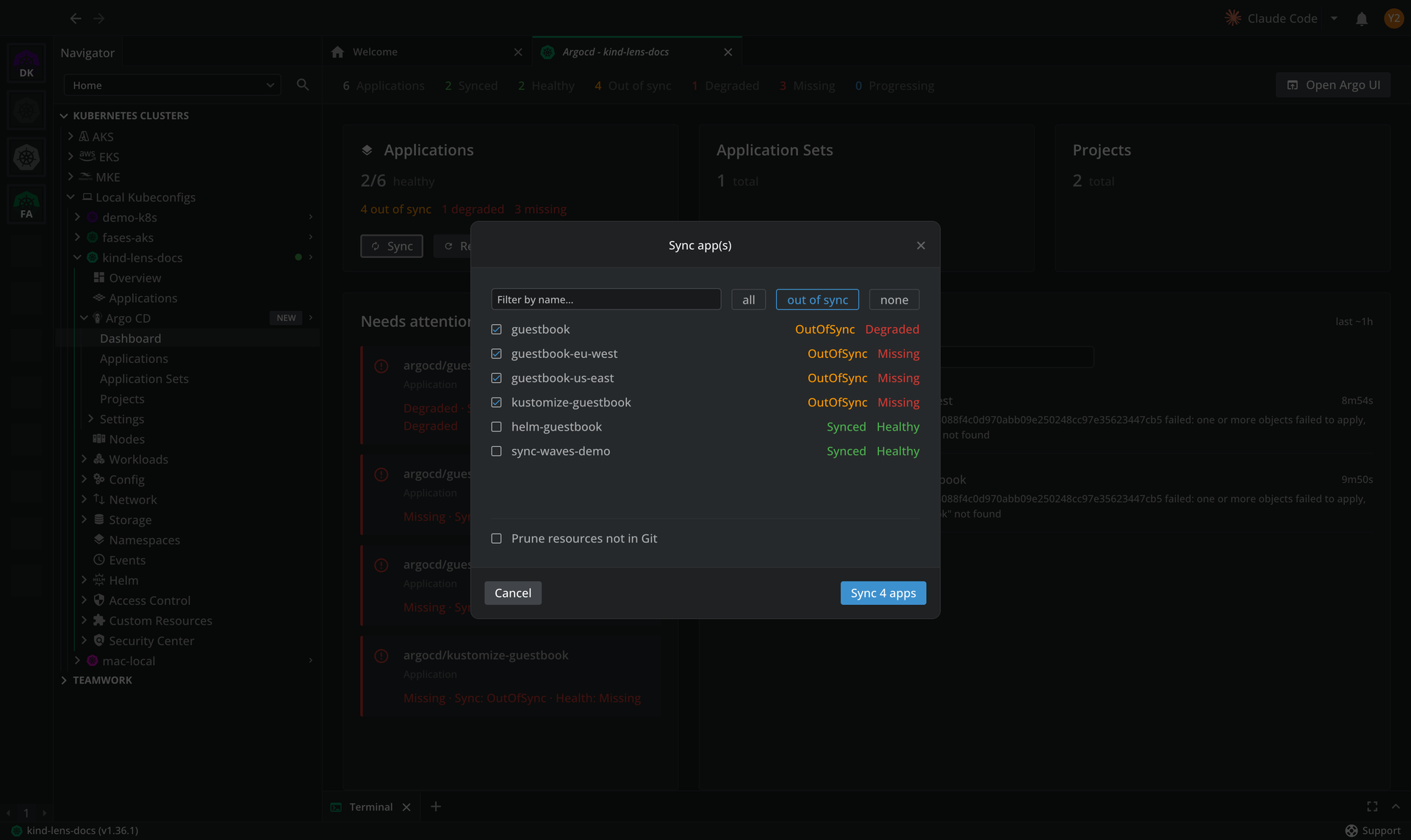
The Applications summary card on the dashboard runs both actions across many Applications at once.
To sync or refresh in bulk:
- On the dashboard, find the Applications summary card.
- Select Sync or Refresh.
- Review the selection. A sync preselects the out-of-sync Applications and lists them first. A refresh preselects all of them.
- Set the option row: the prune toggle for a sync, or the refresh type for a refresh.
- Confirm the action.
Lens K8S IDE reports one notification for the whole batch, covering both the Applications it acted on and any that failed.
Open the Argo CD UI#
Lens K8S IDE opens the Argo CD web UI in your browser without asking you for a URL or a port.
To open the UI:
- Connect to a cluster that runs Argo CD.
- On the dashboard health strip, select the button that opens the Argo CD UI.

Lens K8S IDE finds the Argo CD server by its app.kubernetes.io/name=argocd-server label, so it works whichever namespace Argo CD was installed into. It reuses a running port-forward to that Service, or starts one on a free local port, then opens the browser.
Info
The Argo CD server serves HTTP and HTTPS on the same backend, so your browser is redirected to HTTPS and shows one certificate warning that you can dismiss.
Ask AI about an Argo CD resource#
When Ask AI is set up, Application, ApplicationSet, and AppProject resources expose an AI action in their context menu, so you can investigate a resource in natural language.
To ask AI about an Argo CD resource:
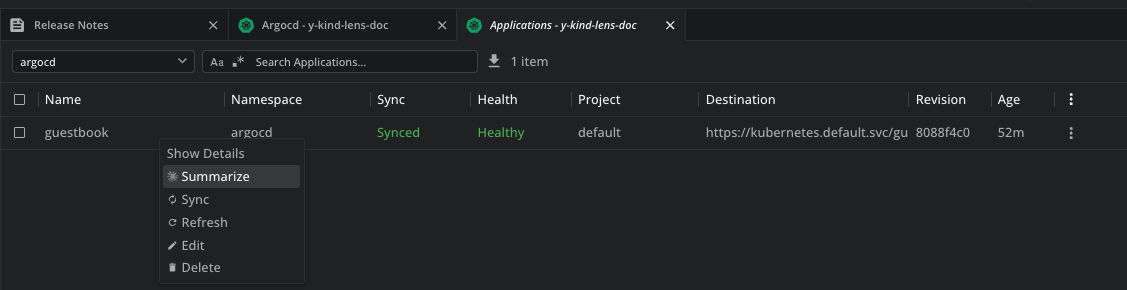
- In an Argo CD list or detail view, right-click a resource, or open its context menu.
- Select Summarize. Lens K8S IDE launches your selected AI tool focused on the resource.
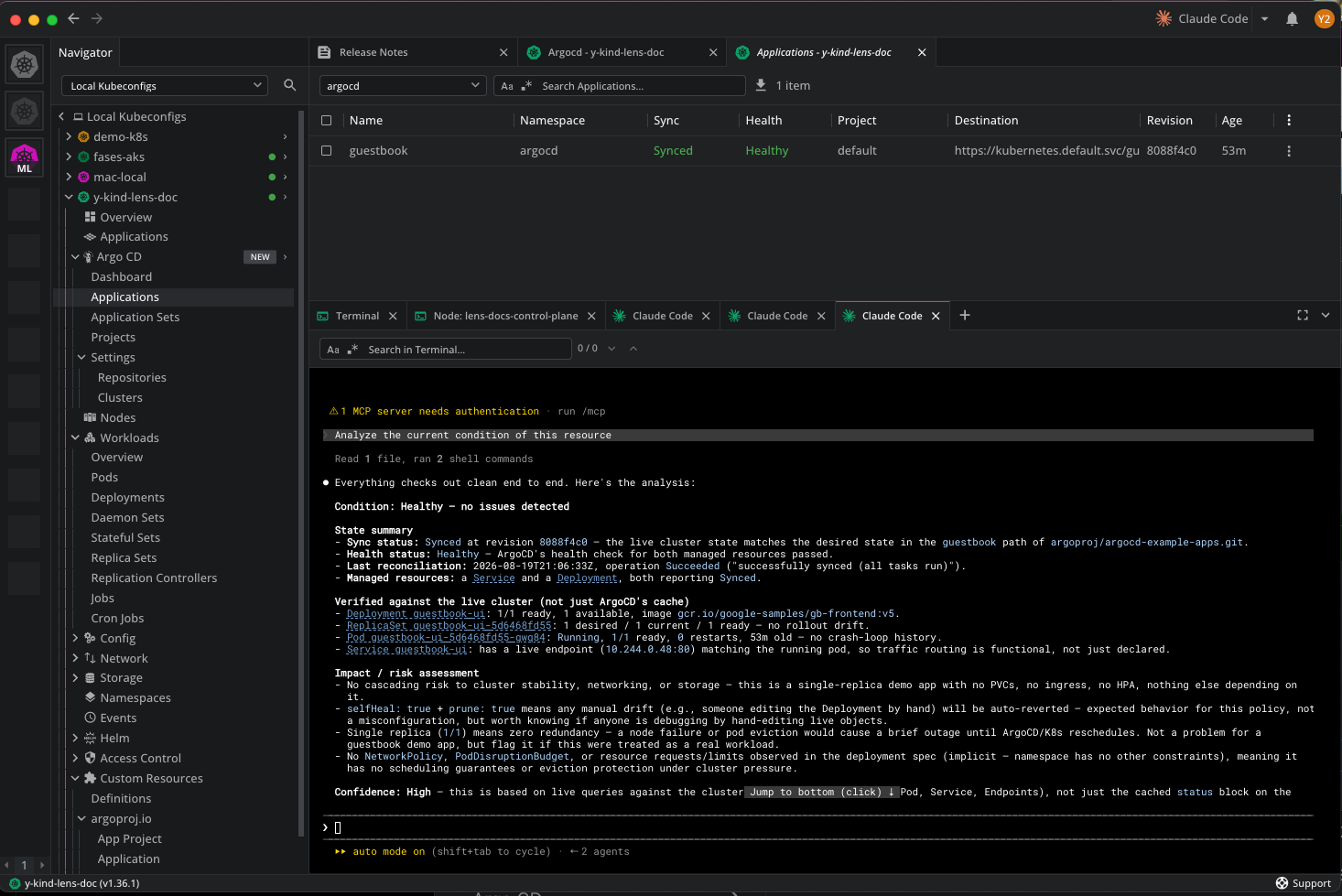
The AI tool goes beyond Argo CD's own status. It queries the live cluster to verify the Application's managed resources instead of relying on the cached sync state alone. It then reports its findings with a risk assessment and a confidence level.
For more about Ask AI, see Ask AI.
To discuss Argo CD support for your organization, contact us.