Using Ask AI#
Lens premium subscription feature. See details on Lens Pricing.
Once you select an AI tool, Lens K8S IDE launches it in a terminal with cluster context attached. This page covers how to open Ask AI and where its entry points are.
Ask AI about your cluster#
To start an AI session:
- Connect to a cluster.
- Select the Ask AI button in the title bar, or press Cmd+I (Ctrl+I on Windows and Linux). The selected tool launches in a terminal tab named after the tool, with your cluster context attached.
- Enter a prompt in plain language.
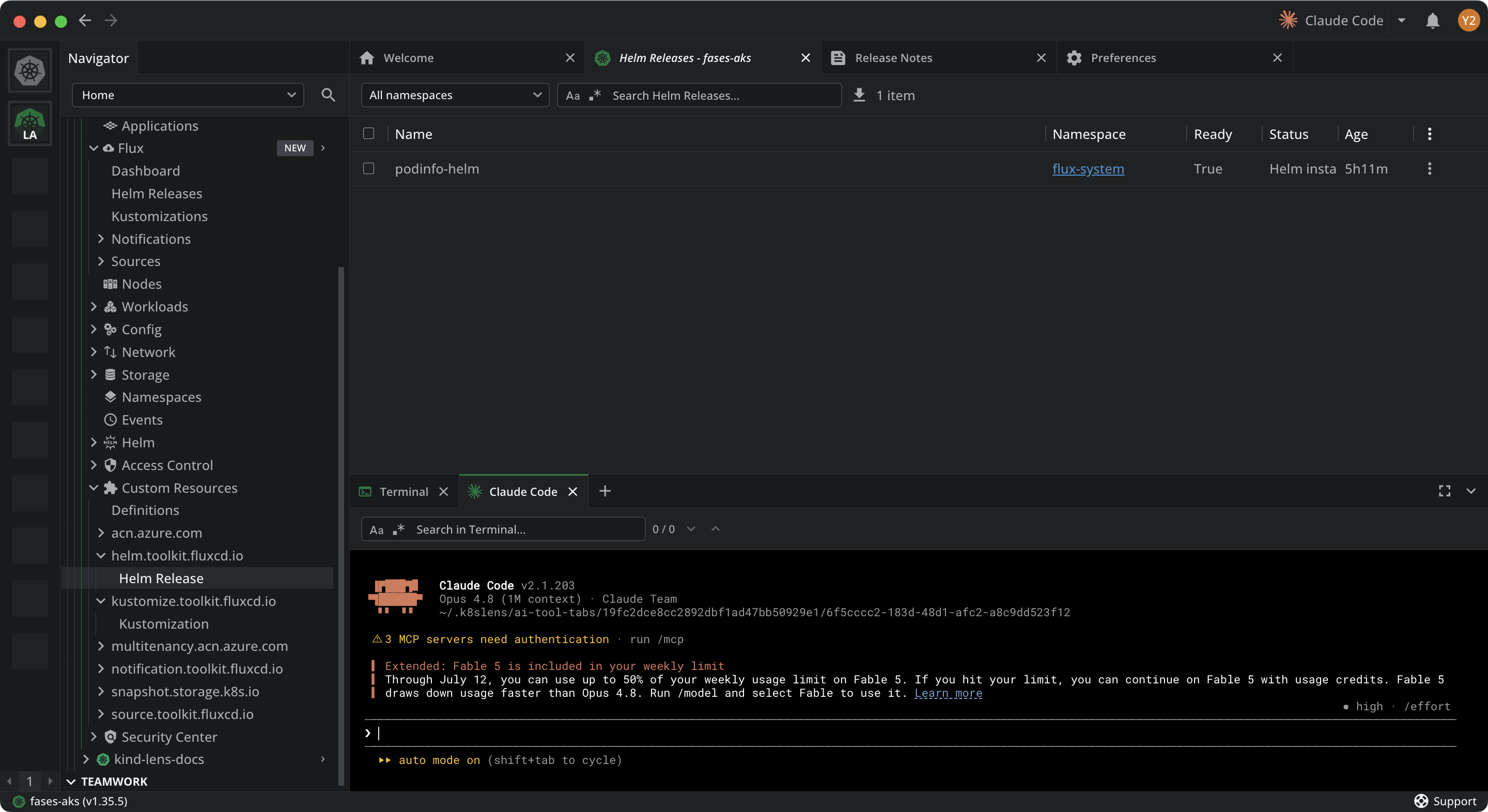
The terminal stays open if the tool reports an error, so you can read the output.
Ask AI from a resource table#
Most Kubernetes resource tables and detail panels expose an entry named after your selected tool. With Claude Code selected, the entry reads Ask Claude Code. The entry opens a submenu of actions scoped to the resource.
To ask AI about a resource:
- Right-click a row in a resource table, or open a resource's detail panel.
-
Open the Ask entry for your selected tool, then choose an action:
Action Description Summarize Summarize the resource Analyze events Review the resource's events Analyze metrics Review the resource's metrics Analyze logs Review the resource's logs Analyze related resources Review the objects related to the resource
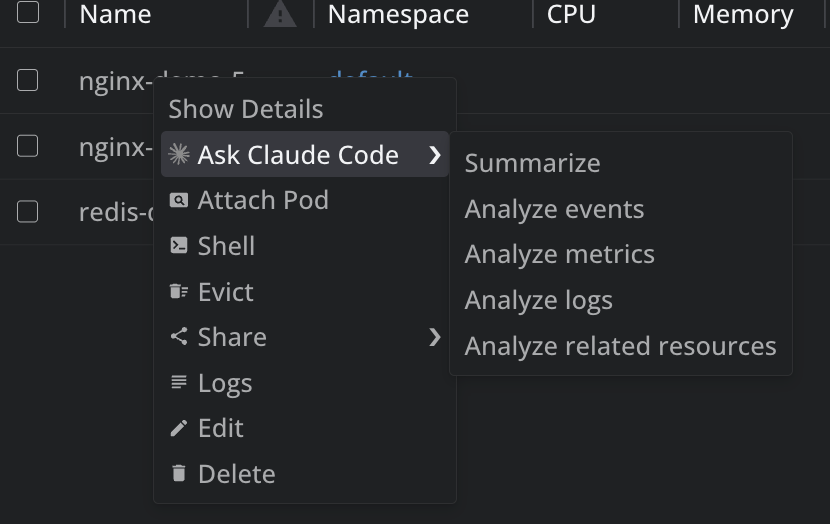
The selected tool launches with the resource and action attached, so you can investigate a single item without typing its name.
Info
Ask AI works through the external AI coding agent you select. Lens K8S IDE attaches your cluster context and launches the agent in a terminal; the agent decides which commands to run. Review any command that changes your cluster before you allow it.
To see example prompts for common tasks, see Work with Ask AI.