Configure Ask AI#
Lens premium subscription feature. See details on Lens Pricing.
Lens K8S IDE runs your chosen AI tool in a terminal. Select the tool in Preferences, install it if it is not already on your system, and choose whether tools launch in the built-in terminal or an external one.
Select an AI tool#
To select an AI tool:
- Open Preferences > External Tools > AI tool.
- Under AI tool, review the available tools. Lens K8S IDE reports how many tools it detects on your system and marks each one INSTALLED or Not found in PATH.
-
Select a tool:
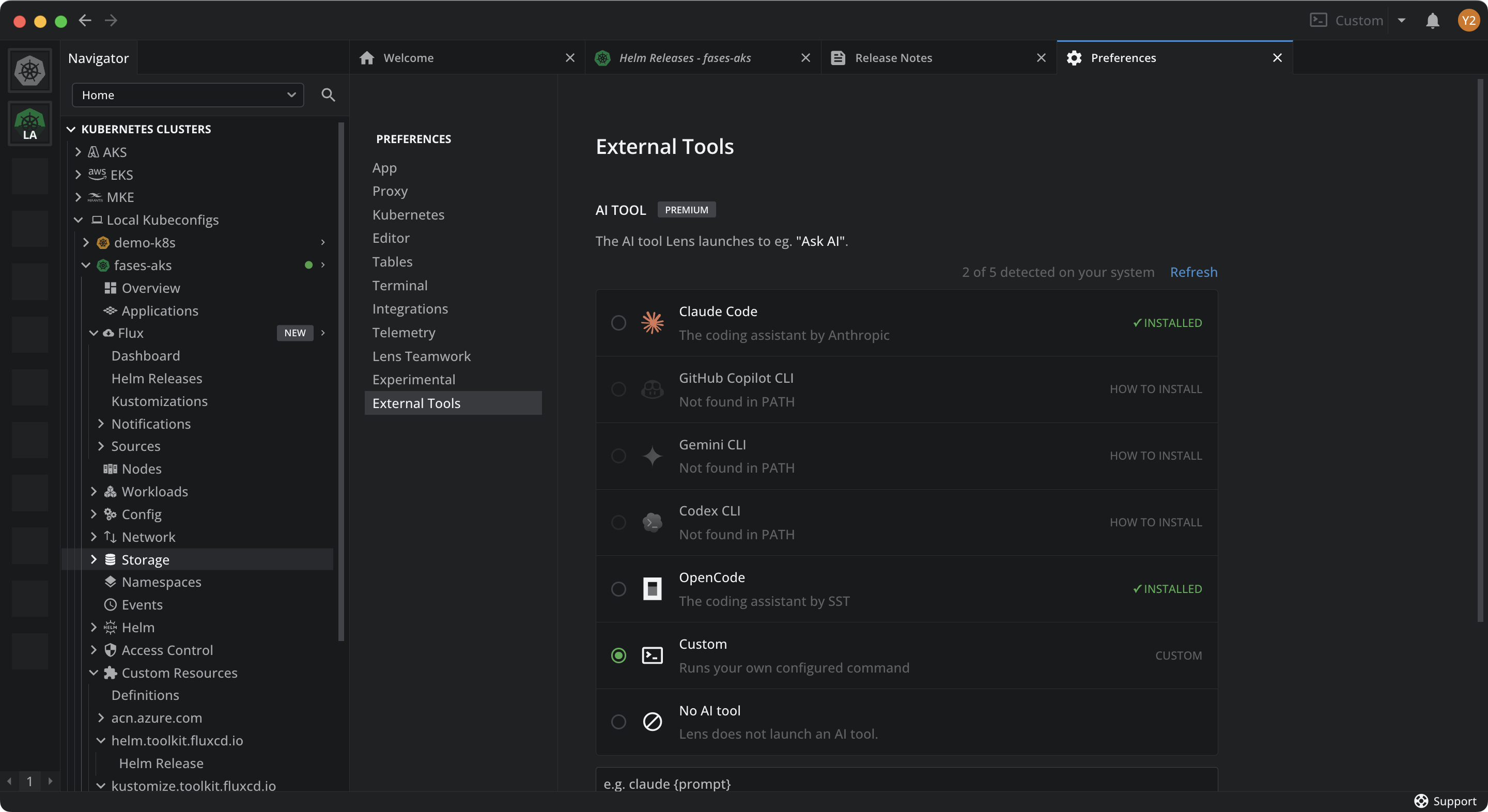
Tool Vendor Claude Code Anthropic GitHub Copilot CLI GitHub Gemini CLI Google Codex CLI OpenAI OpenCode SST Custom Runs a command you provide No AI tool Lens K8S IDE does not launch an AI tool
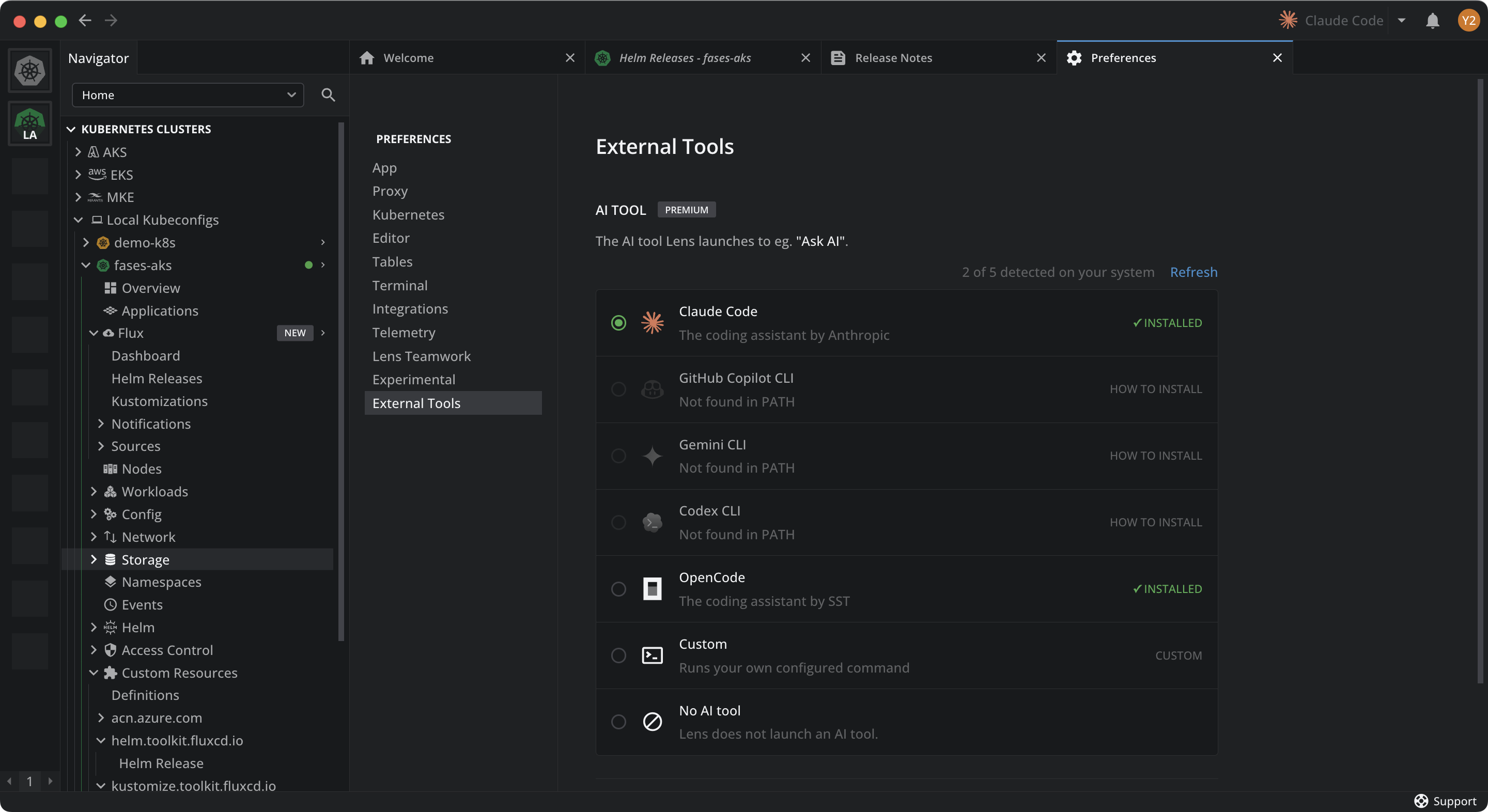
The header shows how many tools Lens K8S IDE detects on your system, for example 2 of 5 detected on your system, next to a Refresh link.
If a tool shows Not found in PATH, select How to install for setup instructions. Install the tool, then select Refresh to detect it.
When you select Custom, enter the command Lens K8S IDE runs to launch your tool. Use {prompt} where the prompt text should go, for example claude {prompt}.
Set the terminal behavior#
AI tools launch in a terminal. On Windows and Linux, tools open in an external terminal. On macOS, tools open in the built-in macOS Terminal.
When a session cannot be resumed, Lens K8S IDE starts a fresh session for the tool.
Info
Your administrator can disable AI tools for managed installations. When AI tools are disabled, the AI tool selector and the external-terminal option are unavailable.