Using Flux CD#
Lens premium subscription feature. See details on Lens Pricing.
The Flux entry in the cluster navigator opens a dashboard for cluster-wide reconciliation status and gives you list and detail views for every Flux resource kind. Lens K8S IDE reads this directly from in-cluster Kubernetes data.
View the Flux dashboard#
To open the dashboard:
- Connect to a cluster that runs Flux.
- In the cluster navigator, select Flux.
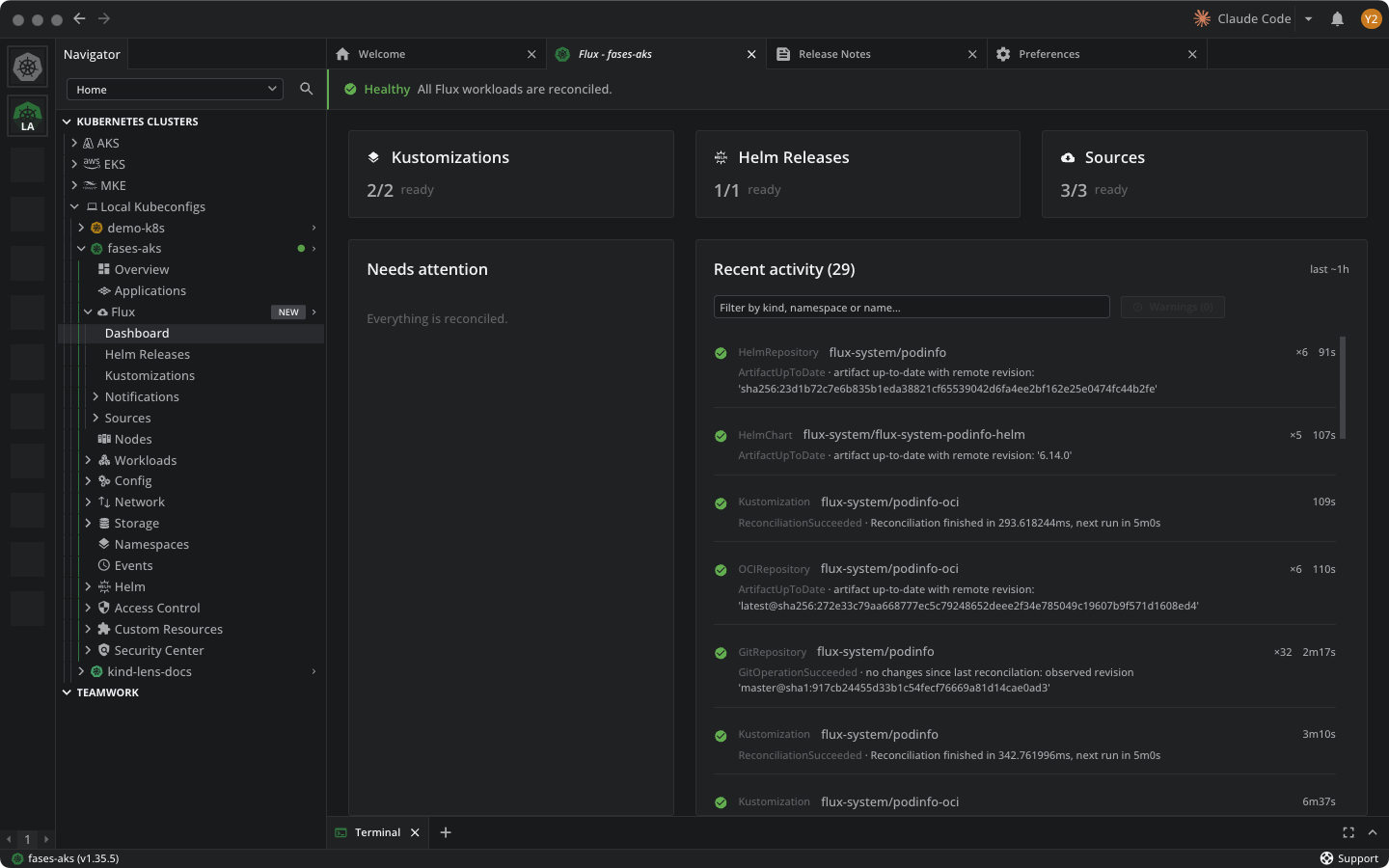
The dashboard has four areas:
- Health banner: overall reconciliation state for the cluster.
- Summary cards: counts of Flux resources grouped by kind (Kustomizations, Helm Releases, Sources) with the ready total for each.
- Needs attention: failing and suspended resources, with per-state filters.
- Recent activity: a timeline from Kubernetes events, filterable by kind, namespace, name, or warnings only.
Reconciliation status#
Flux resources report one of the following reconciliation states:
- Ready: the resource is reconciled and healthy.
- Reconciling: a reconciliation is in progress.
- Suspended: reconciliation is paused for the resource.
- Failed: the last reconciliation did not succeed.
View Flux resources#
Each Flux resource kind has its own list view under Flux, with a detail view per resource. The following kinds are available:
| Group | Kinds |
|---|---|
| Sources | GitRepository, OCIRepository, HelmRepository, Bucket, ExternalArtifact |
| Workloads | Kustomization, HelmRelease |
| Image automation | ImageRepository, ImagePolicy, ImageUpdateAutomation |
| Notifications | Alert, Provider, Receiver |
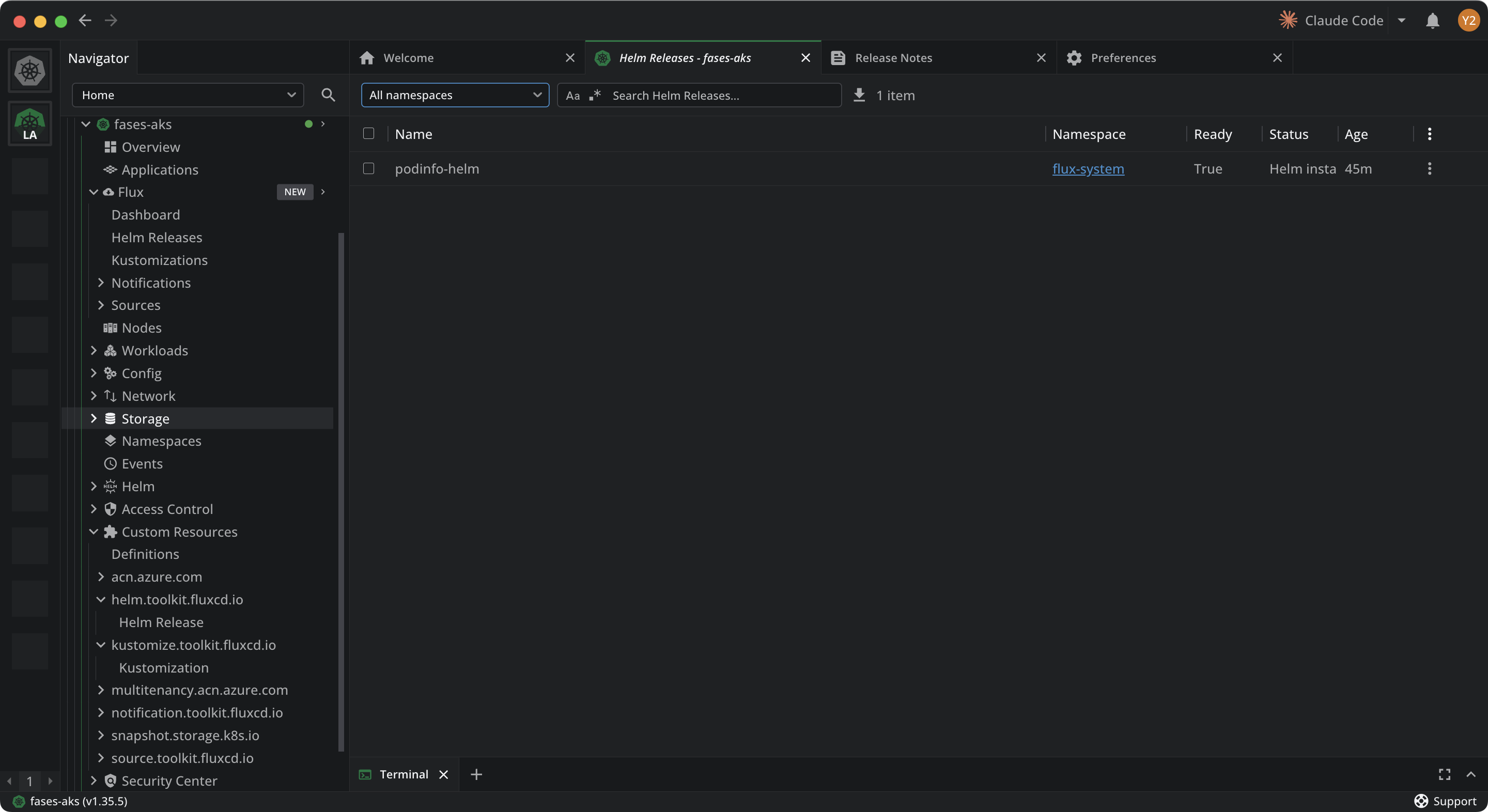
Each list view shows the resource name, namespace, ready state, status message, and age. Use the namespace selector and the search field to narrow the list.
To inspect a resource:
- In the cluster navigator, select Flux.
- Select a resource kind, then select a resource from the list.
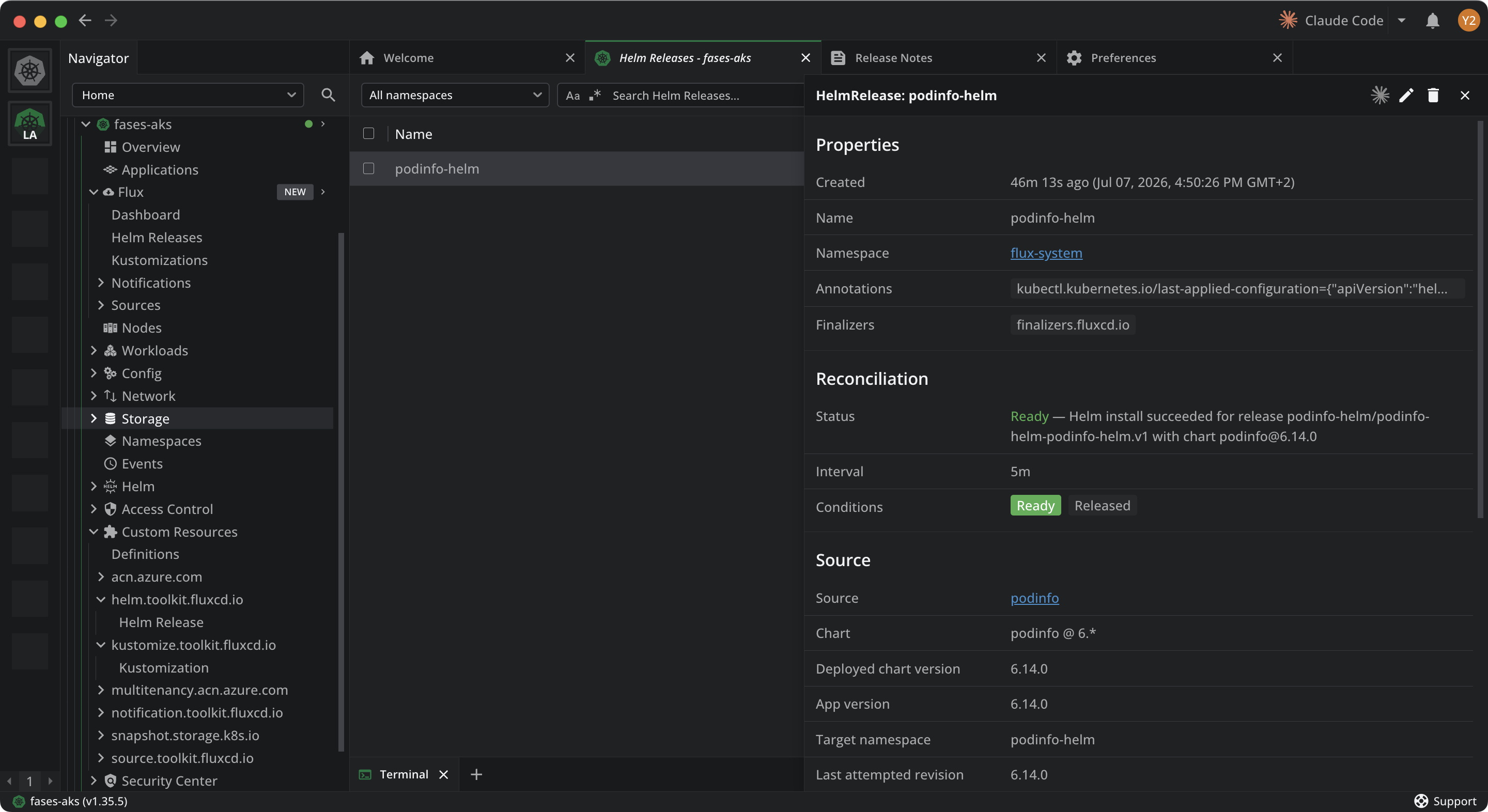
- Use the cross-reference links in the detail view to navigate to managed resources, sources, and revisions.
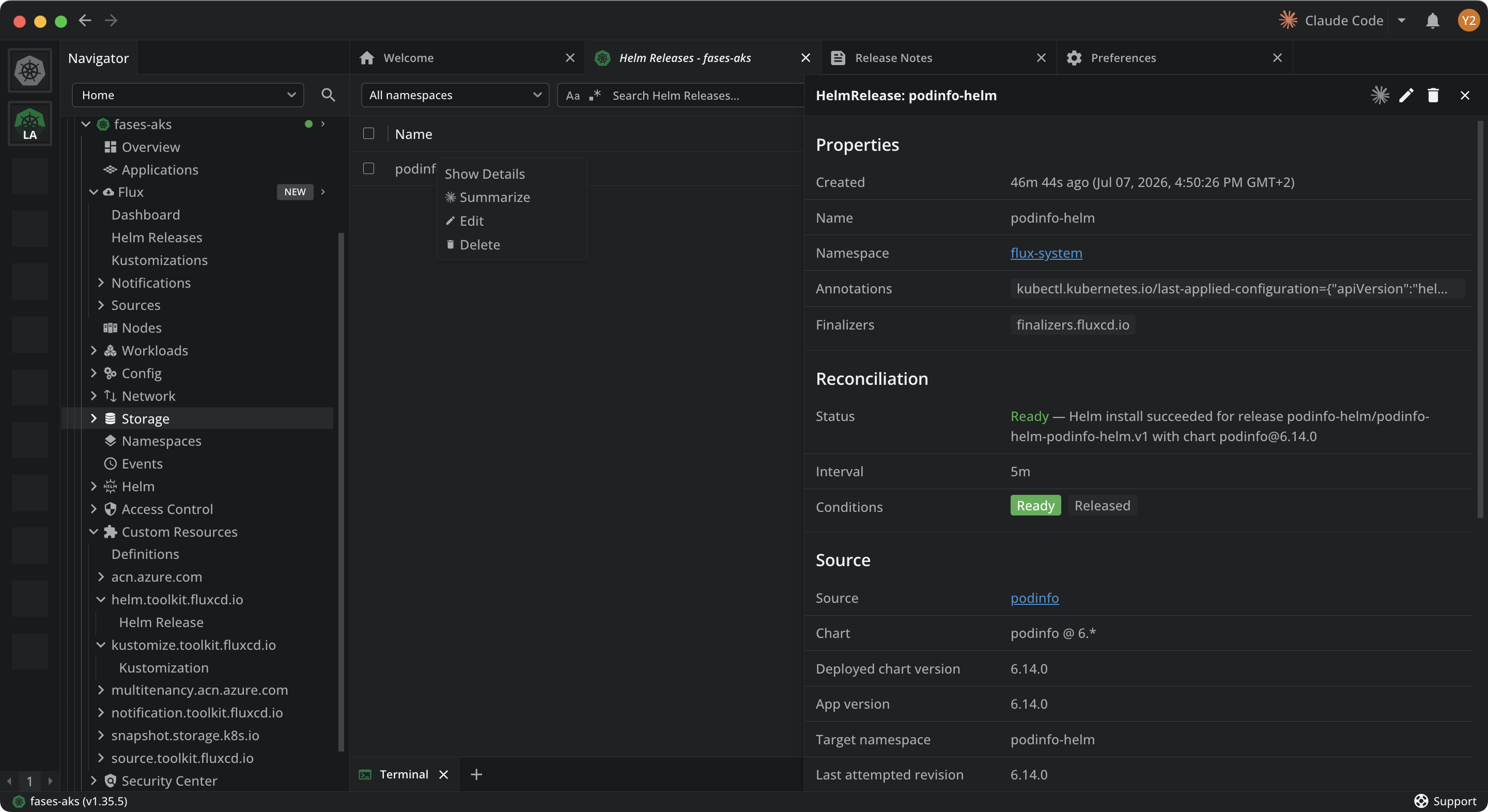
The detail view groups the resource's properties, its reconciliation status and conditions, and its source. Cross-reference links connect it to the objects it manages, the objects that use it, and the source revision that maps to a commit.
View Flux status on workloads#
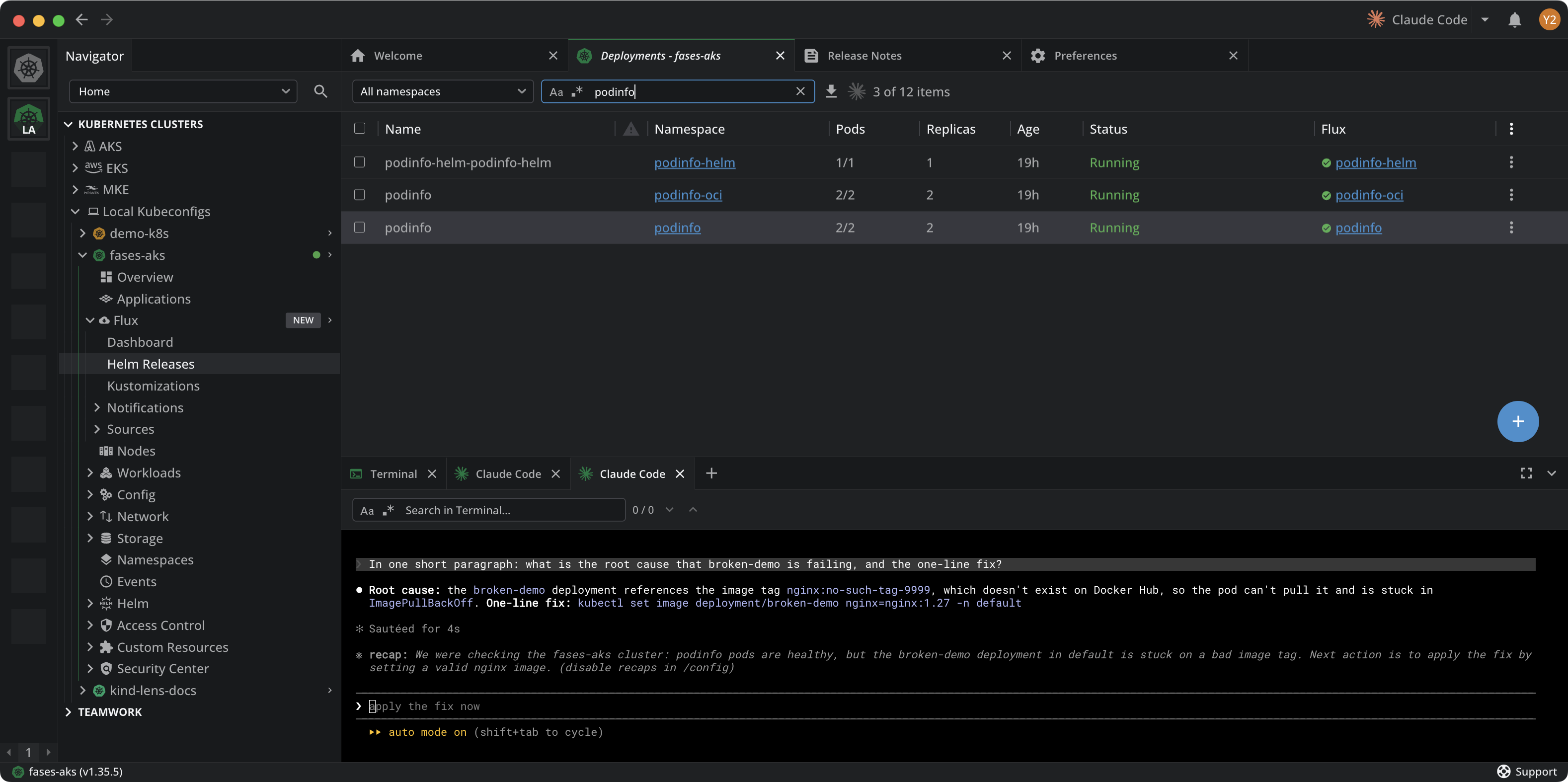
For Deployments, StatefulSets, and DaemonSets that Flux manages, the workload list adds a Flux column that links to the managing Kustomization or HelmRelease and shows a status icon for its reconciliation state. The column is part of the Flux CD premium feature.
Ask AI about a Flux resource#
When Ask AI is set up, Flux resources expose an AI action in their context menu so you can investigate a resource in natural language.
To ask AI about a Flux resource:
- In a Flux list or detail view, right-click a resource, or open its context menu.
- Select Summarize. Lens K8S IDE launches your selected AI tool focused on the resource.
For more about Ask AI, see Ask AI.