How to configure AI providers#
Connect LLM providers to power Lens Prism in Lens Desktop. You can configure multiple providers and switch between them.
Navigate to Preferences > Integrations > AI & Intelligence Integrations.
Prerequisites#
- A Plus, Pro, or Enterprise subscription plan. For details, see Lens Pricing
- An API key from your LLM provider (Anthropic, OpenAI, Azure OpenAI, or any OpenAI-compatible endpoint)
Note
If your plan does not include Lens Prism, a lock icon appears in the AI Integrations section with an Upgrade your plan to use Prism AI link.
Add a provider#
- Open Preferences > Integrations.
- In the AI & Intelligence Integrations section, click Add provider.
- In the dialog, select a Provider Type from the dropdown.
- Enter a Name for the provider (for example, "My AI Provider").
- Fill in the required fields for your chosen provider type (see the table below).
- Click Add.
Info
With the selected provider, Lens Prism connects directly to your configured endpoint. No data is sent to Lens services.
Provider type reference#
| Provider type | Required fields | Optional fields |
|---|---|---|
| Anthropic | API Key (for example, sk-ant-...) |
Custom System Prompt |
| OpenAI | API Key | Custom System Prompt |
| Azure | API Key, Resource Name, Model IDs | API Version, Context Window Size, Max Output Tokens, Custom System Prompt |
| OpenAI-compatible | API Key, Base URL, Model IDs | Context Window Size, Max Output Tokens, Temperature, Custom System Prompt |
Custom System Prompt#
The Custom System Prompt field is available for all provider types. Text you enter here is appended to every prompt sent to the provider. Use it to tailor Lens Prism responses to your workflow.
Examples: "Explain like I'm new to Kubernetes", "Check CRDs for more info", "Speak in Finnish".
Verify that the provider appears in the expanded table with its name and type.
Tip
Give each provider a descriptive name (for example, "Production OpenAI" or "Local LLM") so you can distinguish between multiple configurations.
Test a provider connection#
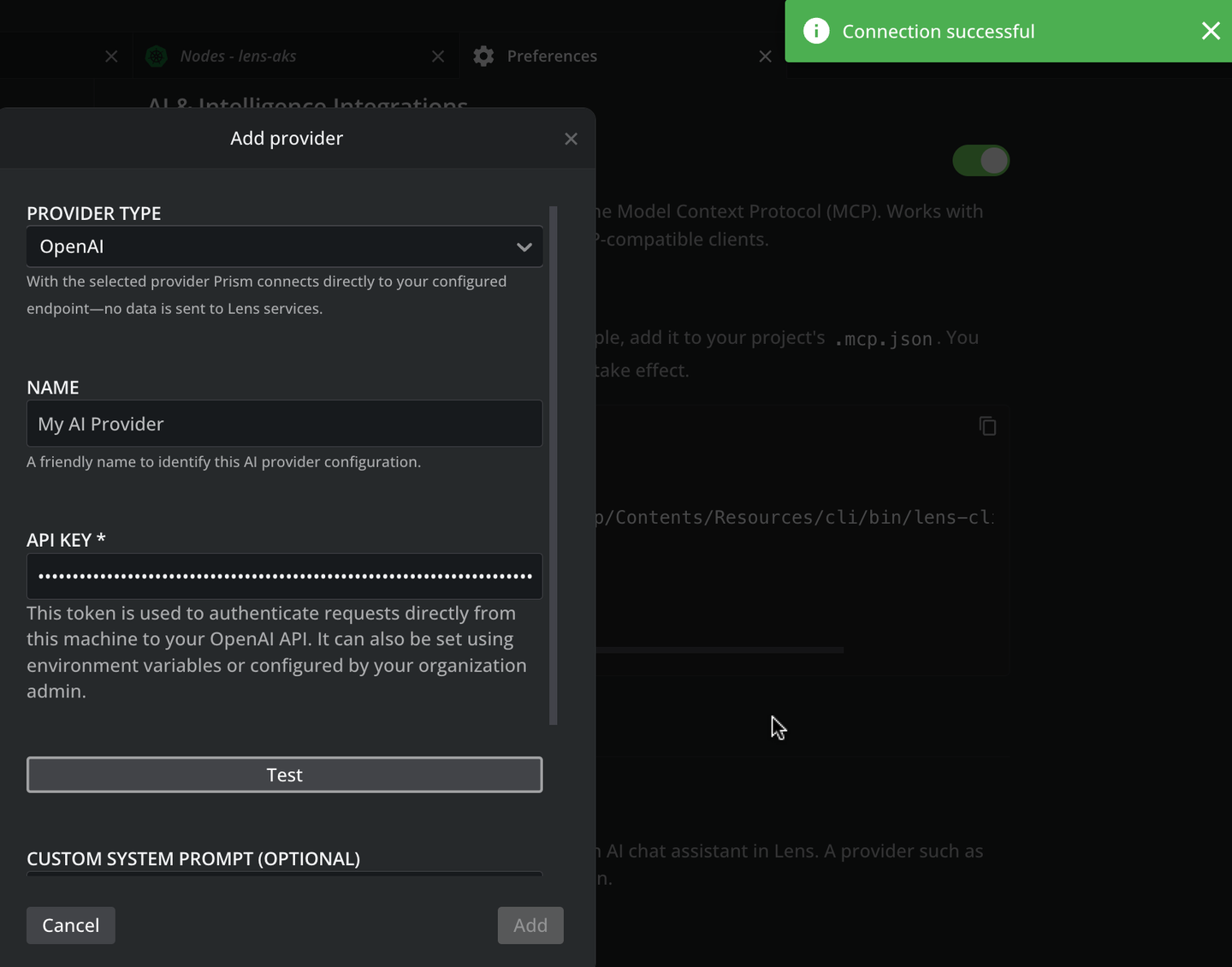
Use Test to verify that Lens Desktop can reach the provider with the supplied credentials. The Add button stays disabled until a test succeeds.
- Open the provider form from the onboarding wizard or from Preferences > Integrations > Prism AI LLM Providers.
- Fill in the Provider Type, Name, API Key, and any provider-specific fields.
- Click Test above the Custom System Prompt field.
- Wait for the response:
- On success, a green Connection successful notification appears in the top-right corner and the Add button becomes active.
- On failure, an error message identifies the cause, such as an invalid API key, an unreachable endpoint, or an unknown model.
- Click Add to save the provider.
For example, a successful test on an OpenAI provider shows the green Connection successful notification at the top right and an active Add button:
Tip
Use Test whenever you change the API key, endpoint, or model settings of an existing provider to confirm the new values work before relying on them.
Manage providers#
Click the status indicator in the AI & Intelligence Integrations section to expand the provider table. Each row shows:
- Provider name: the name you assigned during setup
- Provider type: Anthropic, OpenAI, Azure, or OpenAI-compatible
- Row menu: edit or remove the provider
To edit a provider, click the three-dot menu on its row and select the edit option. To remove it, select the delete option from the same menu.
Enable Lens Prism#
Lens Desktop exposes a toggle that controls whether Lens Prism is active in the UI.
- Open Preferences > App.
- Locate the Enable Lens Prism AI section.
- Turn the switch on.
Info
If your plan does not include Lens Prism, the Enable Lens Prism AI section shows a lock icon and an Upgrade your plan to use Prism AI tooltip instead of the switch. Upgrade your subscription to unlock the toggle.
Warning
Enabling Lens Prism without a configured provider means the assistant cannot generate responses. Add at least one provider in the Integrations page first.
Multiple provider configurations#
You can add more than one configuration of the same provider type. This is useful when you:
- Use different API keys for different teams or projects
- Connect to both a cloud and a self-hosted OpenAI-compatible endpoint
- Test a new provider alongside your current one
Each configuration has its own name, credentials, and model settings.